Thursday, 23 October 2014

Fieldsets In Salesforce

                                                                              Field sets


You can use dynamic bindings to display field sets on your Visualforce pages. 
A field set is a grouping of fields.
 For example,
             you could have a field set that contains fields describing a user's first name, middle name, last name, and business title. If the page is added to a managed package, administrators can add, remove, or reorder fields in a field set to modify the fields presented on the Visualforce page without modifying any code. 
You can have up to 50 field sets referenced on a single page.
First we need to create a fieldset. Go to Setup > Customize > Accounts > Field Set
Click on new. Enter all mandatory fields. Also drag and drop all required fields in fieldset.
Working with Field Sets Using Visualforce:
Field sets can be directly referenced in Visualforce by combining the $ObjectType global variable with the keyword FieldSets.
 For example,
          if your Lead object has a field set called lead_fields that displays six fields, your Visualforce page can reference the field data through the following iteration.

<apex:page standardController="Lead">
  <apex:form >
      <apex:pageblock >   
          <apex:pageBlockSection title="lead detail">
             <apex:repeat value="{!$ObjectType.Lead.fieldsets.lead_fields}" var="f">
                 <apex:Inputfield value="{!lead[fieldValue]}"/>
             </apex:repeat>
             </apex:pageBlockSection>
      </apex:pageblock>
    </apex:form>
</apex:page>


You can also choose to render additional information, such as field labels and data types, through the following special properties on the fields in the field set.


Property Name
Description
DBRequired
Indicates whether the field is required for the object
FieldPath
Lists the field’s spanning info
Label
The UI label for the field
Required
Indicates whether the field is required in the field set
Type
The data type for the field

<apex:page standardController="lead">
    <apex:pageBlock title="Fields in Proper Names">
        <apex:pageBlockTable value="{!$ObjectType.lead.FieldSets.lead_fields}" var="f">
            <apex:column value="{!f}">
                <apex:facet name="header">Name</apex:facet>
            </apex:column>
            <apex:column value="{!f.Label}">
                <apex:facet name="header">Label</apex:facet>
            </apex:column>
            <apex:column value="{!f.Type}" >
                <apex:facet name="header">Data Type</apex:facet>
            </apex:column>
            <apex:column value="{!f.Required}" >
                <apex:facet name="header">Required</apex:facet>
            </apex:column>
            <apex:column value="{!f.FieldPath}" >
                <apex:facet name="header">FieldPath</apex:facet>
            </apex:column>
        </apex:pageBlockTable>
    </apex:pageBlock>
</apex:page>

Working with Field Sets Using Apex

Fields in a field set are automatically loaded when your Visualforce page uses a standard controller.
When using a custom controller, you need to add the required fields to the SOQL query for the page. 
Apex provides two Schema objects that allow you to discover field sets and the fields they contain, Schema.FieldSet and Schema.FieldSetMember.

<apex:page controller="leadfieldset" sidebar="false">
    <apex:form >
     <apex:pageBlock title="Lead Details">
          <apex:pageBlockSection title="Lead Name">
              <apex:inputField value="{!lead.Name}"/>
          </apex:pageBlockSection>
     
          <apex:pageBlockSection title="Dimensions">
              <apex:repeat value="{!fields}" var="f">
                  <apex:inputField value="{!lead[f.fieldPath]}"
                      required="{!OR(f.required, f.dbrequired)}"/>
              </apex:repeat>
          </apex:pageBlockSection>
 
        </apex:pageBlock>

    </apex:form> 
</apex:page>
public class leadfieldset{

    public lead lead{ get; set; }
   
    public leadfieldset() {
        this.lead= getlead();
    }

    public List<Schema.FieldSetMember> getFields() {
        return SObjectType.lead.FieldSets.lead_fields.getFields();
    }

    private lead getlead() {
        String query = 'SELECT ';
        for(Schema.FieldSetMember f : this.getFields()) {
            query += f.getFieldPath() + ', ';
        }
        query += 'Id, Name FROM lead LIMIT 1';
        return Database.query(query);
    }
}


Field Set Considerations
Fields added to a field set can be in one of two categories:
·         If a field is marked as Available for the Field Set, it exists in the field set, but the developer hasn’t presented it on the packaged Visualforce page. Administrators can display the field after the field set is deployed by moving it from the Available column to the In the Field Set column.
·         If a field is marked as In the Field Set, the developer has rendered the field on the packaged Visualforce page by default. Administrators can remove the field from the page after the field set is deployed by removing it from the In the Field Set column.
The order in which a developer lists displayed fields determines their order of appearance on a Visualforce page.


Collections In Salesforce

                                                   Collections


Apex has the following types of collections:

*      Lists
*      Maps
*      Sets

Lists:

A list is an ordered collection of elements that are distinguished by their indices.

List elements can be of any data type—primitive types, collections, sObjects, user-defined types, and built-in Apex types.

List will Allow duplicate values.

Syntax:

Syntax

List<datatype> listName = new List<datatype>();
  • The datatype allows both primitive datatypes and non-primitive datatypes
  • Size of the list is dynamically increased.

Sets
Set is an unordered collection of elements which will not allow duplicates.

Syntax

set<datatype> setName = new set<datatype>();
  • data type allows only primitive datatypes and SObjects.
  • We cannot get the retrieve the data based on index because set does not  have index.

Maps
Map is key – value pairs.

Syntax

map<datatype,datatype> mapName = new map<datatype,datatype>();
  • First datatype is key and it allows primitive datatypes and should be unique.
  • Second datatype is values and it allows both primitive & non-primitive datatypes and allows duplicates.


Methods in List

Add

Add the values to the list.
Ex: List<String> colors =new List<String>();
colors.add(‘Red’);
colors.add(‘White’);
colors.add(‘Black’);    (OR)   
List<String> colors =new List<String>{‘Red’,’White’,’Black’}

Get

Retrieve a values from list using index.
String getcolor = colors.get(1); —-  we get the value is ‘White’ in to getcolor veriable.

Set

Replaces a former value with the value at given index.
colors.set(1,’Green’); —-   List has value at index ‘ 1 ‘ is White is changed to Green.

Size

Return the number of elements in the list.
colors.size(); —-    Gives the size of colors list is ‘2’

Clear

Remove the elements from the list.
colors.clear();


---------------------------------------------------------------------------------------------------------------------------

Example:  Inserting 100 contacts in contacts object

public class ContactInsertion{
list<contact> contactList = new list<contact>();
public void methodName(){
for(integer i=0; i<100 ; i++ ){
contact cont = new contact(lastname = ‘contact’ + i);
contactList .add(cont);
}
insert contactList ;
}
}


Write in Anonymous block and excute it.
list<contact> contactList = new list<contact>();
for(integer i=0; i<100 ; i++ ){
contact cont = new contact(lastname = 'prasadl' + i);
    system.debug('names are : '+'prasadl'+i);
contactList .add(cont);
}
insert contactList ;

 Set Methods
set<string> myString = new Set<String>{'a', 'b'};
    myString.add('d');
system.debug('add method = ' +myString);
   mystring.remove('a');
system.debug('remove method = ' +mystring);
system.debug('contains method = ' +myString.contains('c'));
system.debug('isempty method = ' +mystring.isempty());
  set<string> myString1 = myString.clone();
system.debug('clone method = ' +mystring1);


Methods

Put()

Insert a key-value pair or replaces a value with the given value for the key .
  •    map.put(key,value);

Get()

Retrieves the value for a key.
  • map.get(key);

keySet()

Retrieves all the keys and return type is set;
  • map.keySet();

values()

Retrieves all the values and return type is list;
  • map.values();

Size()

Return the number of components in the map.
  • map.size();

Example: Create a map of Account Ids and Account objects.

public class AccountMapPopulation{
// Creating map with account id and account object
map <Id,Account> accountIdMap =new map<Id,Account>();
public void methodName(){
// creating the accounts
account acc1 = new account (name =’account1′ , industry = ‘ Banking’);
account acc2 =new account(name =’ account2′ , industry = ‘Agriculture’);
account acc3 = new account(name=’account3′ , industry=’Banking’);
// populating the map with account id and account object
accountIdMap .put(acc1.id,acc1);
accountIdMap .put(acc2.id,acc2);
accountIdMap .put(acc3.id,acc3);
}
}
Ex:
List<Account> ls = [select Id,Name from Account];
Map<Id, Account> m = new Map<Id, Account>(ls);
*       Insert new record to the map
account a = new account(name = 'basha');
m.put(a.id,a);
insert a;
system.debug('new record '+a);
*       Get Record From map
account name1 = m.get('0019000000yVODTAA4');
system.debug('specific value' +name1);
*       Print Ids in the map
system.debug('map ids ' +m.keyset());
*       print values in the map
system.debug('map ids and values' +m.values());
*       copy one map to another map
Map<Id, Account> m1 = new Map<Id, Account>(m);
system.debug('map ids and values' +m1.values());
*       Size of the map
system.debug('map elements size' +m.size());
*       Map is empty or not
system.debug('map is empty or not' +m.isempty());
*       Clear the map
m1.clear();
system.debug('map ids and values' +m1);

Map<Integer, Account> M = new Map<Integer, Account>();
*       Verify if the list of sObjectscontains Account tokens
system.debug('=======map=====' +M.getSObjectType());
System.assertEquals( M.getSObjectType(), Account.sObjectType);


Monday, 20 October 2014

Birthday Reminder Email


                                              Birthday wishes to contact emails
Object
Contact
Description
Send an email to the contact one day before the contact's birthday.
Evaluation Criteria
Evaluate the rule when a record is: created.
Rule Criteria (Filter)
Run this rule if the following formula evaluates to true:
(Contact: Birthdate not equal to null) and
(Contact: Email not equal to null)
Immediate Actions
None.
Time-Dependent Actions
1 Day Before Contact: Next Birthday—Email Alert: Send a birthday greeting to the contact's email address.


Monday, 13 October 2014

Creating Parent and Child Records in a Single Statement Using Foreign Keys(External ids)

You can use external ID fields as foreign keys to create parent and child records of different sObject types in a single step instead of creating the parent record first, querying its ID, and then creating the child record.
To do this:

• Create the child sObject and populate its required fields, and optionally other fields.

• Create the parent reference sObject used only for setting the parent foreign key reference on the child sObject. This       sObject has only the external ID field defined and no other fields set.

• Set the foreign key field of the child sObject to the parent reference sObject you just created.

• Create another parent sObject to be passed to the insert statement. This sObject must have the required fields (and
optionally other fields) set in addition to the external ID field.

• Call insert by passing it an array of sObjects to create. The parent sObject must precede the child sObject in the   array,that is, the array index of the parent must be lower than the child’s index.

contact co  = new contact(lastName='raja');
// Create the parent reference.
// Used only for foreign key reference
// and doesn't contain any other fields.
Account accountReference = new Account(SLASerialNumber__c='00000');
co.Account = accountReference;
// Create the Account object to insert.
// Same as above but has Name field.
// Used for the insert.
Account parentAccount = new Account(Name='Hallie',SLASerialNumber__c='47700');
// Create the account and the opportunity.
Database.SaveResult[] results = Database.insert(new SObject[] {parentAccount, co});
// Check results.
for (Integer i = 0; i < results.size(); i++) {
if (results[i].isSuccess()) {
System.debug('Successfully created ID: '+ results[i].getId());
} else {
System.debug('Error: could not create sobject '+ 'for array element ' + i + '.');
System.debug(' The error reported was: '+ results[i].getErrors()[0].getMessage() + '\n');
}

}


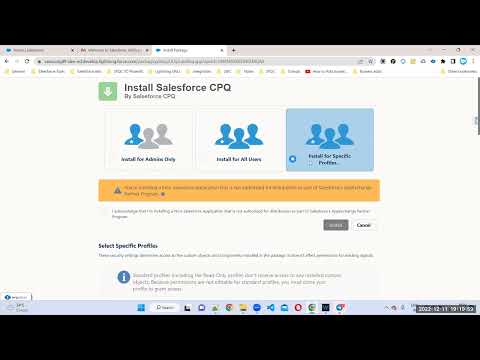
Complete Salesforce CPQ training Free videos

Salesforcestart:: We are excited to announce that our YouTube channel, Salesforcestart, is your one-stop-shop for all things Salesforce CPQ!...